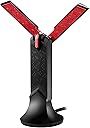
🚀 Upgrade your WiFi game — because buffering is so last decade!
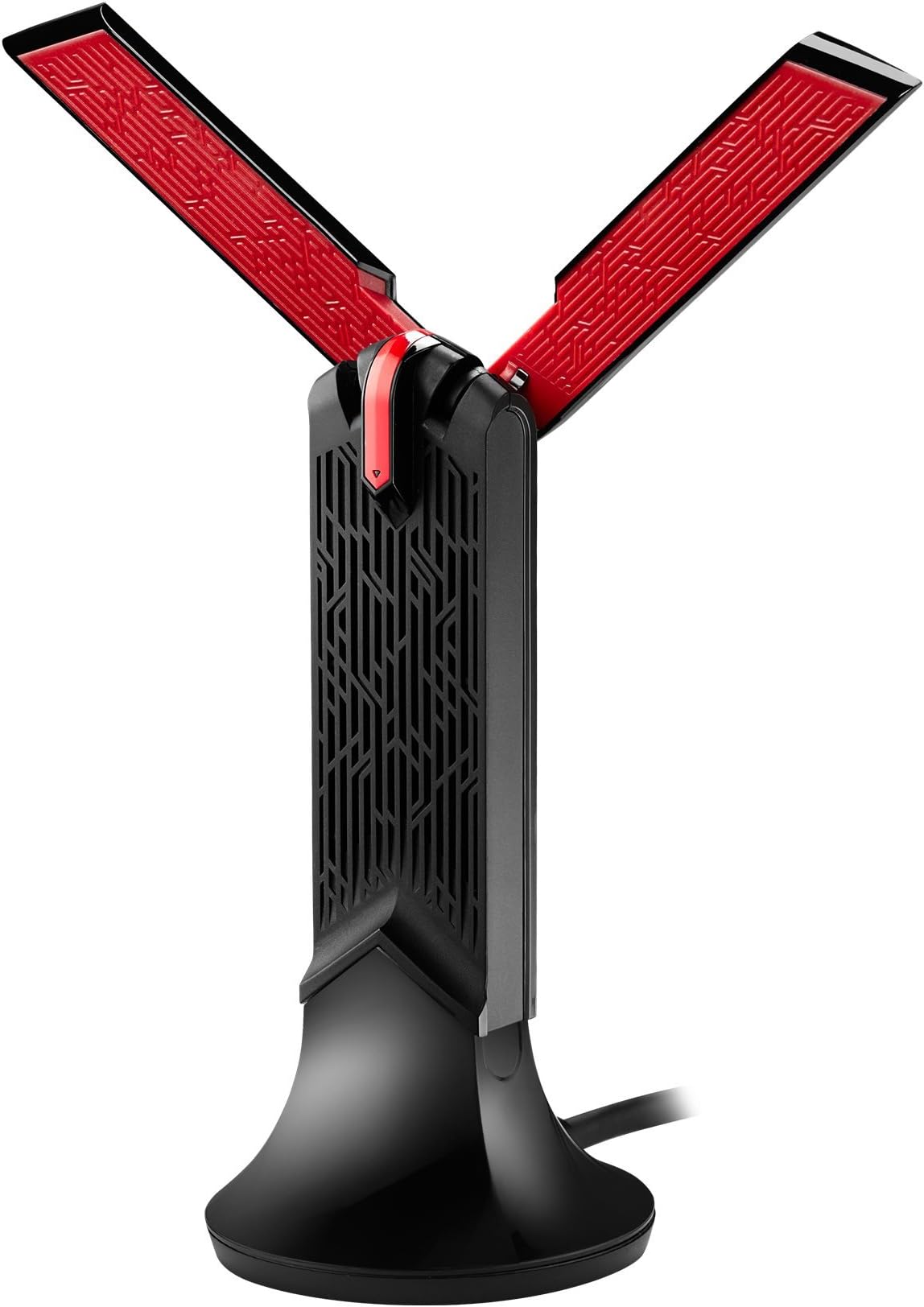
The ASUS USB-AC68 is a premium USB 3.0 WiFi adapter that instantly upgrades your desktop or laptop to ultra-fast AC1900 dual-band wireless. Featuring a powerful 3x4 MIMO antenna array with both internal and foldable external antennas, plus an included desktop cradle for optimal placement, it delivers up to 300% faster speeds than previous generation adapters. Compatible with multiple Windows and Mac OS versions, it offers plug-and-play convenience and exceptional signal stability, making it the go-to choice for professionals craving reliable, high-throughput wireless connectivity.


| ASIN | B01I7QFR10 |
| Best Sellers Rank | #1,939 in USB Computer Network Adapters |
| Brand | ASUS |
| Built-In Media | Dual-Band AC1900 USB WIFI ADAPTER, SUPPORT CD, USB extension cable, Warranty car |
| Color | black |
| Compatible Devices | Desktop, Laptop |
| Compatible Operating System Family | MacOS, Windows |
| Customer Reviews | 4.2 out of 5 stars 1,049 Reviews |
| Data Link Protocol | USB |
| Data Transfer Rate | 1300 Megabits Per Second |
| Global Trade Identification Number | 00889349027103 |
| Hardware Interface | USB 3.0 |
| Item Dimensions L x W x H | 1.18"L x 0.69"W x 4.52"H |
| Item Weight | 1.55 ounces |
| Manufacturer | ASUS Computer International Direct |
| Mfr Part Number | USB-AC68 |
| Minimum Required Operating System Version | Windows 7 |
| Model Number | USB-AC68 |
| Product Dimensions | 1.18"L x 0.69"W x 4.52"H |
| UPC | 889349027141 889349348383 889349027103 |
| Warranty Description | 2 Year warranty |
D**T
Color me impressed
I must say, I was very skeptical about this device, having had plenty of past mediocre experiences with other usb wifi adapters and seeing all the negative reviews about this one overheating, disconnecting, dying, or even being brought to its knees at one point by the Windows Creators Update. But this thing, has so far exceeded all expectations. Using the 5 Ghz band is where this adapter really shines. Being in a room in this house where some ungodly field of interference has plagued me for many years is no longer an issue with this device. The stability is just insane. Any pro gamer who plays first person shooters knows that it is not about the bandwidth of a connection that matters but the stability by which frames of data are consistently delivered. I have provided an image just to show how smooth the green curve for the download speed is (this is literally what a direct lan line connection looks like). Upload speeds are a bit choppy when increasing, but this is certainly nothing new with most modern devices. My ISP currently allows me up to 400 Mbits download speeds (upload is like 25 Mbits). I am also about 30 feet away from the router. Though this might not seem far, keep in mind that I am dealing with some crazy unknown wall of interference that hampers most wifi devices and am using a default ISP router (Sagecom) from Spectrum at the other end. My Samsung S8 on the 5ghz band can reach around 150 Mbits. This utility certainly has it considerably beat. So I am pretty happy with those results. Installation is very straight forward. All you have to do is simply plug it in and the default Windows 10 wifi driver takes over. The default driver appears to have been updated to support AC devices as I am getting up to 500-700 Mbits of data throughput with the limitations I am experiencing (this device should be able to push over 1 Gbit of throughput in most other situations from what I have witnessed). I have experimented with both the dated ASUS driver and Realtek driver to find that the default driver was the best option of the bunch. Neither the ASUS or the Realtek driver saw any real improvement in bandwidth or throughput. The Realtek driver in fact caused some problematic lag spikes upon attempting to uninstall and revert back to the original Windows driver. This was remedied by a netsh winsock reset. All in all, I am happy with this purchase. The amazing performance of the ASUS PCE-AC88 on another desktop is what led me to take a chance with this more expensive usb adapter. Was it worth it? So far yes, yes indeed. Let's just hope it doesn't run into any of the previously mentioned issues. Otherwise it will stay at 5 stars.
C**D
Works as advertised (for a novice user) - review update - 1/10/2019
3/19/2020 - Product review update: I've had this product for 18 months now, still working fine, no issues at all. 1/10/2019 - Product review update: I've had this product for several months now and am still very happy with it. Absolutely no issues, still getting very decent download/upload speeds and have made my wife happy with her computer again. Averaging 22-27MB's on the downloads and 19-25MB's on the uploads (which is 2 to 3 times better than my previous product) with a 100MB ISP service. Pings are averaging around 15-19ms. Note: this testing is with a speed test service not associated with my ISP provider. I may be wrong but my ISP provider's "speed test" always seems to bring back very high results which I don't think are "real world". My computer is about 50 feet from my router with several walls in between (standard wallboard/wood frame house). Hope this helps. Initial Review: Bought this item to replace a much older product that, at the time, seemed acceptable. However, when my Internet Service Provider "upped" the down service speed from 25MB to 50MB at no additional charge I found that I couldn't take advantage of it. I already have an ASUS router (recently purchased) so I decided to stay with the ASUS product line, especially after reading the favorable reviews for this product. After receiving the product, I installed the CD drivers and immediately updated them from the ASUS website (not sure if I just simply duplicated what I already had done but did it anyway). Plugged the ASUS unit in, navigated to my Wi-Fi page and found my router. Input the password and I was up and running. The speed is definitely faster than I had before, not sure if I'm getting all of the "bang" available but it certainly does what I need it to do. I'm sure that someone who knows how to do this better than myself could "fine tune" the installation. One minor issue with it was that it seemed to take a couple of tries for it to "remember" the link after I powered down the PC. I had to "reconnect" but it did eventually "remember" the link and now works fine. Not sure if this is an "idiot in front of the screen" error or something with Windows 10. Hope this helps any other "novice" looking to install this device.
T**M
Disconnect Issues Completely Solved
Initially I connected the ASUS USB-AC68 AC1900 Dual-Band USB 3.0 WiFi Adapter to a USB 3.0 port on my desktop using a somewhat long but very good high quality USB extender cable. The USB-AC68 worked great, except when it didn't....I kept getting periodic disconnect issues as others have reported. So, debugging ... I decided to remove the USB 3.0 Extension cable completely and plugged the WiFi unit directly into a free USB 3.0 port on my desktop. Result: I have not gotten a single disconnect issue since and it has been many, many months now. Evidently there must be a noise or signal quality issue that develops going through the USB cable from the device. If you are having disconnect trouble I recommend you find a free USB port close to the motherboard (or make one) and let the AC-68 live there for your wireless connection. As an FYI I use a Gigabyte motherboard. But, my WiFi AC-68 unit is plugged into an ANKER USB 3.0 extension board which provides me access to a few more USB 3.0 ports. Hope this helps. This is a good unit when it works. I should mention that this USB WiFi dongle connects to my "ASUS Whole Home Dual-Band AiMesh Router (AC1900) for Mesh Wifi System (Up to 1900 Mbps) - AiProtection Network Security by Trend Micro, Adaptive QoS & Parental Control (RT-AC68U)" as the household WiFi router. This is unit is located 1 floor below where I connect with this USB WiFi dongle.
A**A
Looks cool, works fine
I recently moved and had issues with my previous USB adapter being able to catch good connection in the new house layout so i was looking for a new adapter to work with my gaming and streaming (League, warframe, Among Us, etc. simple games) at first, i did as directed and downloaded the drivers straight from the WEBSITE since i dont have a CD reader in my pc. Was working great for a month or two; 60 ping in league, reliable connection, videos loaded faster. However recently, i had issues of broken connection and heavy ping spikes. i originally thought it was due to COVID and having everyone home and using the internet; but not only was i the only one using a computer, i was the only person awake in the house, meaning no one was even awake to use any devices extensively. After doing a quick swap out and connection test with my old adapter, i realized the new adapter was not working up to par. i looked around on these reveiws and noticed that the people who had no issues or little issues were those who connected the adapter out of the box without installing the drivers. so i did a few more connection tests between the two adapters for comparisons. the ASUS adapter was hitting between 8-60 Mbps for downloads prior to removing the drivers and 0.5mbps for uploads. After a clean driver removal and fresh computer restart; Downloads hit 90-120mbps download and 11-12mbps for uploads. so far its running smooth and i have been testing the connection with consistent results. hopefully it sticks because i do like this adapter quite a bit.
C**R
A Mixed Bag of...HUGE JUNK
- - - 11/26/17 Update - - - Down to 1 star since it has been unusable for a couple months since it causes continuous BSOD on Windows 10. They have also not provided new drivers since May 2017 and no fix for WiFi vulnerabilities as mentioned further below in November. I'm done with asus for adapters, routers and now even motherboards. - - - I picked this up because the fastest rated USB adapters were only 867 Mb which includes the Intel AC7260 internal card. It’s HUGE! I tested the adapter on USB 2.0 and 3.0 Windows 10 64-bit systems with driver 2.1.3.0. I also tested on the following routers: ASUS RT-AC5300, RT-AC3100, RT-AC1900P and Netgear R8500. Sadly, this adapter performed best on the Netgear router and was a mixed bag with ASUS’ still broken (alpha!) MIMO. Was using it on a USB 3.0 system faster than a 2.0? On uploads yes but not on downloads, except for the R8500 but not by much. When you turned MIMO on the ASUS routers the downloads were better on the 2.0 system and the uploads were awful on the RT-AC5300 and awful on the RT-AC3100 with MIMO turned on and using the 3.0 system. I wanted to replace a Netgear A6200 (867 Mb) and the USB-AC68 saw a slight improvement on the 2.0 system. For some reason the A6200’s download performance was only 1/3 the speed when connected to the RT-AC5300 but about the same for uploads. Using the adapter on the 3.0 system yielded better results when using the R8500 and scored the highest upload speeds. The RT-AC5300 showed the USB-AC68 connection rate up to 1300 Mb while the RT-AC3100 would only show up 867 Mb. The AC7260 had better download speeds than the USB-AC68 but the USB-AC68 had better upload speeds. I have a couple systems with this adapter so there’s going to be a compromise. Unfortunately the HP notebook I have has a vendor-locked internal wireless NIC and replacing it with an AC7260 wouldn’t work so I’m forced to use a USB adapter. The 802.11ac network adapters can barely push 400 Mb in my real-world testing so you can ignore the silly marketing numbers the vendors use. I don’t know how they get away with adding the theoretical maximum bandwidth of all the radios together in router. And you can ignore 802.11ad vapor; it’s near-field point to point. I was using the USB-AC68 adapter with the R8500 with no issue but when I was looking to replace it I got the RT-AC5300 and starting having BSoDs after configuring it. I used a different system with the same adapter and the same thing happened. I used a system with the AC7260 and had no issues. I then packed up the router and was going to send it off to Amazon for a refund. I then tried an RT-AC3100 and RT-AC1900P and had BSoDs again with these and found that when I set Protected Management Frames to Capable that was causing the issue. After testing these two units and not being happy with their performance, I went back to the RT-AC5300 and unboxed it for another try now that I knew what not to set. * Only adding notable comments for RT-AC3100 USB-AC68 using 3.0 client: RT-AC5300 just couldn’t keep up with R8500, even with MIMO RT-AC5300 – 128 Mb peak / 128 Mb typical download (RT-AC3100 136 Mb peak / 112 Mb typical download) 240 Mb peak / 232 Mb typical upload (RT-AC3100 272 Mb peak / 256 Mb typical upload) 232 Mb peak / 168 Mb typical download w/MIMO 200 Mb peak / 264 Mb typical upload w/MIMO (RT-AC3100 32 Mb peak / 24 Mb typical upload) R8500 – 320 Mb peak / 224 Mb typical download 432 Mb peak / 320 Mb typical upload USB-AC68 using 2.0 client: R8500 slightly better in download but same on upload RT-AC5300 – 256 Mb peak / 248 Mb typical download 224 Mb peak / 216 Mb typical upload (Same upload rates on RT-AC3100) 32 Mb peak / 24 Mb typical upload w/MIMO enabled! (RT-AC3100 maintained same rates w/MIMO) R8500 – 272 Mb peak / 240 Mb typical download 224 Mb peak / 216 Mb typical upload A6200 USB 2.0 adapter: R8500 crushes on the download but about same on upload RT-AC5300 – 88 Mb peak / 88 Mb typical download 200 Mb peak / 184 Mb typical download R8500 – 232 Mb peak /224 Mb typical download 200 Mb peak / 192 Mb typical upload Internal 7260: R8500 best performance with RT-AC5300 not far behind as long as MIMO wasn’t used AC5300 – 328 Mb peak / 304 Mb typical download 184 Mb peak / 168 Mb typical upload (RT-AC3100 192 Mb peak / 184 Mb typical upload) 128 Mb peak / 120 Mb typical download w/MIMO (RT-AC3100 320 Mb peak /168 Mb typical download) 288 Mb peak / 272 Mb typical upload w/MIMO R8500 – 368 Mb peak / 312 Mb typical download 224 Mb peak / 176 Mb typical upload - - - Update: This adapter performs better on non ASUS routers after additional router testing. Ended up with Synology RT2600ac after returning the RT-AC5300 ------- Update 2: Finally got around to testing additional 5 GHz channels on Synology RT2600ac and this adapter doesn't work with them so another strike. The only reason I kept the second star is that it "can" be faster than the Intel part in some situations. The notebooks with the internal Intel NICs picked up every channel I threw at it. These are the channels this thing can't handle: 52,56,60,64,100,104,108,112,116,132,136,140 I can imagine those that turn on automagic channel selection (only on few routers that support these channels - not ASUS) and all of a sudden clients stop connecting because of adapters that don't support them. I'm glad the new router supports these channels since nobody is using them in the area...it will be like 802.11a days again where I was solo for a while. Time to go notebook shopping so I can get rid of the legacy gear and get an internal Intel NIC. Wish I would have tested this a week ago so I could get a refund. Guess I'll chuck this in the draw with my 1Mb PCMCIA Wifi adapter after I get a new notebook. - - - 11/26/17 Update - - - Gave up on the asus USB-AC68 because of inconsistent performance and lack up any new drivers since May. I'm not holding my breath on any fixes for KRACK for this adapter either. Intel even released updated drivers the day after mainstream word of KRACK for the AC7260 card that was introduced in 2013 and currently EOL. Oh, and Synology even updated their older RT1900AC (2 years old already) router the day after as well.
Y**7
1.3GBPS real world 134GBPS with medium internet speed from my IPS very nice!
Awsome product! My wifes laptop keeps dropping from 866.7gbps- 500gbps real world speed 90gbps-40gbps now with new asus adapter is 1.3gbps solid real world speed 134gbps solid. Just Install cd go through instructions then plug in your new Asus usb-ac68 into your laptop/computer and be patient the blinking blue light is transffering data between your router or modem. Next Turn off WIFI go to property and turn on your WIFI your wireless adapter is suppose to stop blinking and a solid blue will stay lit letting you know its connected also it will say 1.3gbps yes FOLKS! 1.3gbps!!! in network and sharing center click on access type: Internet connection which will say something like wireless network connection 4 and your personal WIFI name or numbers from router or modem. You might have to turn off and on your WIFI and internet couple times in home network but it will work eventually.*keep in mind windows 10 had launch bugs causing WIFI to cut its self signal in and out just google windows 10 problems with WIFI from Microsoft but its all fixed now everything in device management is updated. I thought it was this adapter but i did my homework i have 2 of these now maxiing out at 134gbps which is more than enough for anything, i have 12 devices with full WIFI all day long with Asus rtac5300 router. All in all it took me about 10-20minutes to get it up and running. No more slow nights of internet i also have one of these upstairs in far room on a refurbished HP SFF i5 3570 and a gigabyte GTX 1050oc low profile gaming card gaming 4 hours at night no problems it woops butt have fun streaming/gaming/surfing /transffering/ printing and working at home from your jobs server it will handle everything. I also have the Asus RTAC5300 router so ya we are rocking 5G all device and streaming 4K no problem so good luck be patient and just google it or Youtube it people will help you. Happy wifey Happy lifey she loves it cause she works at night on her laptop. Good luck god speed hope this helps. *Also dont expect miracles from old computers with old processors get yourself an i5 processor on up and a SSD in your computer or laptop you will love how fast it is.
S**K
Really good network adapter
Really good network adapter. when i got it my 5g didn't work but i could see neighbors 5g networks. so i contacted ASUS and they told me that my router is on the wrong frequency and to ask my ISP. I did and they fixed it. i am one floor below my router and a couple of feet away (the router is on the 2nd floor near the front and i am on the 1st floor in the middle of the house). i get my full speed of 100/100. my old laptop gets around 35 and the network adapter that came with my PC gets .3 which is the reason i got this one. my phone can get 100/100 though.
W**S
Just What I Needed - Don't Install the Included Driver
The GOOD: Good build and elegant design. More importantly, its MIMO capability paired with its great reception improved my download speeds by 10x -- from ~28 to ~268 Mbps. (My router is an ASUS RT-AC88U and located on a different level of the house.) The BAD: The documentation contradicts itself: * The quick start guide tells you to connect the device and then install the drivers. * A sticker on the device tells you otherwise and to install the driver before connecting the device. The UGLY: I originally had the device connected and Windows 10 recognized it. I did not use the included install CD but downloaded the installer from the support page. As soon as I installed the included driver I ran into problems where the device would disconnect or report that there it was connected with no internet. I thought it was operator error due to the confusing documentation and uninstalled/restarted/reinstalled. Same problem. Uninstalled again and the problems went away. I recommend this device but would urge users to not install the included drivers -- your OS probably has newer versions already built in.
Z**N
No drops, very consistent, I thought it would be faster than my old AC1200 adapter
Very solid, no real complaints. No dropped connections and full wifi signal. I have gigabit ethernet and ac 1900wifi with rogers ignite. Speed test 168 download speed, 30mb/s upload speed. My AC-1200 gave me almost same results (but was unstable with lots of wifi drops). Best Device Manager > Network Adaptors > Asus USB-68 settings > advanced tab Adaptivity Para 0 AMfactor ...mode 2 BeamCap HT ..TX/RX (bottom Option) EnableAdapt.. AUTO HLDiff... 7 L2H... Auto or F5 Ldpc.. & HT LD.... (bottom option) QoS Support Support QoS StbcCap & HT STBC (bottom option) USB RF select BY DEV/Host USB SF Mode Disable VHT 2.4G Enable Wireless Mode IEEE 802.11a/n/ac * this seems to work ok with power management enabled!
A**S
Excelente para gaming
Aunque es un poco cara, da muy buenos resultados. Ojo con la instalación, no es tan fácil como dice en la caja. Lo volvería a comprar
A**.
Exclent
Excellent product
A**H
Brilliant !
It made my older laptop stream movies like a new one. 5G over 2.4G a huge step up. A worthwhile investment if you are using a older lappy with 2.4Ghz that isn't capable of a 5Ghz update internally. The icing on the cake is, you can go out in the yard many meters away from your home WiFi and work without issue, and at 100MBPS. Excellent.
G**3
Excelente antena.
Supero mis espectativas. Excelente conectividad.
Trustpilot
1 month ago
2 weeks ago