Buy anything from 5,000+ international stores. One checkout price. No surprise fees. Join 2M+ shoppers on Desertcart.
Desertcart purchases this item on your behalf and handles shipping, customs, and support to Thailand.
🖱️ Elevate your workspace with precision, comfort, and wireless freedom!
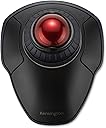
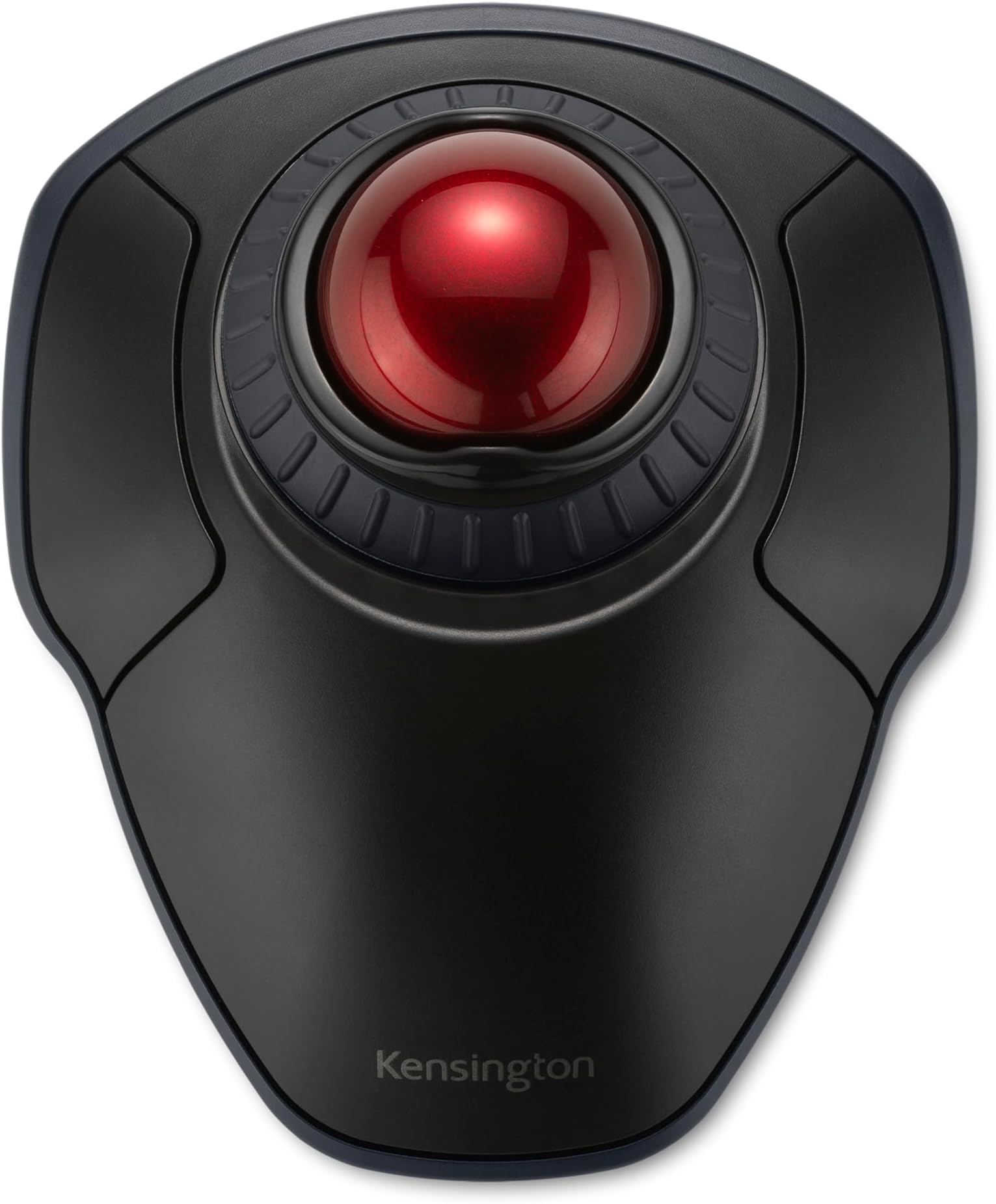
The Kensington Orbit Wireless Trackball with Scroll Ring combines dual wireless connectivity (2.4 GHz and Bluetooth LE) secured by 128-bit AES encryption, a 40mm precision trackball with four adjustable DPI settings, and an ambidextrous ergonomic design. Its patented scroll ring enables smooth navigation, while customizable buttons via KensingtonKonnect software enhance productivity. Compatible with Windows and macOS, it offers a durable, portable, and comfortable input solution favored by professionals seeking to reduce wrist strain and boost efficiency.


| ASIN | B09DGMYVPP |
| Additional Features | Wireless |
| Antenna Location | Office |
| Are Batteries Included | Yes |
| Are Batteries Required | Yes |
| Best Sellers Rank | #3 in Computer Trackballs |
| Brand | Kensington |
| Built-In Media | orbit wireless trackball, usb receiver, aa battery |
| Button Quantity | 2 |
| Color | Black-Red |
| Compatible Devices | Personal Computer |
| Connectivity Technology | Bluetooth |
| Customer Reviews | 4.3 out of 5 stars 1,221 Reviews |
| Enclosure Material | Plastic |
| Hand Orientation | Right |
| Hardware Platform | PC |
| Item Dimensions L x W | 7.3"L x 5.6"W |
| Item Weight | 5.6 Ounces |
| Manufacturer | Kensington |
| Mfr Part Number | K70990WW |
| Minimum Required Operating System Version | Mac OS 14 Sonoma, Windows 11 |
| Model Name | Orbit with Scroll Ring |
| Model Number | K70990WW |
| Mouse Maximum Sensitivity | 1600 Dots per Inch |
| Movement Detection | Optical |
| Movement Detection Technology | Optical |
| Number of Batteries | 2 AA batteries required. (included) |
| Number of Buttons | 2 |
| Operating System | Windows, macOS |
| Pattern | Mouse |
| Power Source | Battery Powered |
| Range | 30.0 feet |
| Special Feature | Wireless |
| Style Name | wireless |
| UPC | 085896709909 |
| Unit Count | 1.0 Count |
| Warranty Description | 3 year |
A**S
Takes some getting used to, but now I love it
I've been using this for three years and it works great. I use a laptop and work remotely, so I literally tote it around and take it out almost everyday. I use the trackball because I hate trackpads, even the Macbook Pro pad. A mouse is fine, but it doesn't work on an uneven surface. Durability: The only durability issue I've had is with the little rubber feet on the bottom. I re-glued them (E6000 Premium adhesive works) about two years in. Otherwise, it never acts up. I also keep mine in a general purpose case, so it isn't rattling around in my bag. Mouse Movement: Ball movement is smooth. I think it's much smoother than the Logitech M570 that I used before. It is important to keep it clean. Snacking on slightly greasy food with my right (mouse) hand will cause it to feel janky. Wiping clean usually solves the problem. The ball pops out easily for cleaning, and the little contact points will get gunked up, so I clean those regularly too. The scroll wheel works fine too. It felt a little "loose" at first, but I don't notice it anymore, and I use it constantly. Accuracy: A trackball isn't quite as accurate as a mouse, but I haven't used a mouse in so long that I don't really notice it. I found a "speed" setting on my computer that lets me move quickly across the screen but let's me land with some precision. I doubt I would use this for precision gaming or graphic design, but I can fit the cursor between two characters with no trouble. Weight: The Orbit weighs 187 grams with a battery, so it feels light but not cheap. More importantly, the ball itself has a decent heft. I would rather it was a little heavier and had a little more inertia (like a Missile Command trackball), but it's fine. Fit: When I first got this, I thought it was way worse than my M570. The M570 is very natural, scrolling with your thumb and clicking (and using the scroll wheel) with the index and middle finger. The way I use the Orbit, I scroll with my index and middle finger, left click with my thumb, use the scroll wheel and right click with my ring finger on my right hand. This felt really unnatural, almost painful, at first. I was writing quite a bit in SQL and using Excel, so quickly navigating was important to me. So I stuck my Orbit in a drawer for a few months and basically thought it was a failure. But I pulled it out a few months later when I was without a trackball, and after a few weeks, it felt totally natural. Now it's all I use. I think a weird trick that helps is that I roll it with my fingers and then barely lift them off the ball when I go to click. Clicking with my thumb while my fingers touch the ball almost always wiggles things around too much. Connectivity: I use my Orbit with my Macbook Pro and just pair via the built in bluetooth. Before that, I used it with a Windows notebook for a few months without trouble. I never really have to fuss with it. I switch it on and it works right away. Battery Life: I use this pretty intensely everyday, but I probably only change the batteries a few times a year. I don't keep track, but I'm pretty sure it's at least three months in between changes. And I don't have to repair or fuss with it after battery changes. In summary, I this is my main input device and I'm very happy with it. It does everything I want and causes very few problems.
I**N
I use it with Logitech right-hand tracking ball mouse to rest my right hand: Pros & Cons
I am right-handed and for years have used, and enjoyed, the Logitech (now called "Logi") right-hand tracking ball mouse, which unfortunately the company does not make a left-hand version of. Though right handed, my right thumb has begun to hurt from overuse of the right-handed mouse, so I searched hard for a left-hand option so I can use it for a while (either alone or shifting from one mouse to another). After trying a regular "ambidextrous" mouse without a tracking ball, which I returned because it was hard on the wrist, I ordered this Kensington tracking ball mouse which was advertised to be good for (1) ambidextrous (i.e. left and/or right-hand) use, and, (2) large hands (incidentally, "large" is defined as having greater than 7.5" length from the tip of the middle finger to the start of one's wrist; "medium" is 6.5" to 7.5", and "small" is below that). My length is 8". Here's my experience: Pro: I prefer the scroll wheel on the Kensington (which surrounds the track ball) to the scroll wheel on the Logitech (Logi) (which is located on top of the mouse) because it's easier on the hand to rotate the scroll wheel clockwise and counterclockwise on the Kensington mouse than use one's index finger to scroll up and down with the Logi mouse. This scroll wheel feature alone convinced me to keep the Kensington. Pro: As long as you have space on your workspace surface, and have the extra USB port or use the blue tooth function on the Kensington mouse, you can use two computer "mice" simultaneously. I have done so and it's easy. One's computer/laptop simply recognizes whichever mouse you use first, then switches to the other mouse after you stop using the one you're using and start using the other mouse. Pro: It's pretty. I got the red-colored tracking ball and it contrasts positively against the blue-colored tracking ball of my Logitech right-handed tracking ball mouse. Pro: I'm right-handed, so there are cognitive/neurological/brain benefits to using a left-handed mouse (exclusively or in tandem with a right-handed mouse). It's supposed to help prevent Alzheimer's disease, plus it's a lot of fun using my left hand. Pro: Since the Kensington is "ambidextrous" in design, I can use this mouse with my right-hand if I wish, which still would somewhat help alleviate my right-hand thumb pain because the ergonomics of the Kensington are different than the ergonomics of the Logitech tracking ball mouse. But I prefer to use the Kensington fully with my left hand to rest my right thumb and hand. Con (which may be a Pro): The tracking ball is a bit stiffer on the Kensington than the Logi, but (1) that may loosen up over time and (2) that may be an asset (and intentional by Kensington) to prevent accidentally moving the tracking ball on the Kensington, which unlike the Logitech mouse, takes up the top of the mouse instead of being located on the left side of the mouse as is the case for the Logitech tracking ball mouse. Still, I would have loved the tracking ball more if it were just a tad bit smoother/easier to roll. Then again, perhaps my Kensington's tracking ball is a bit stiffer than another tracking ball on the same model mouse: i.e. that may be a problem specific to my "mouse" than the a problem with the design feature itself. But again, it's not overly stiff. It still is easy enough to roll the tracking ball. Con (which has a Pro side): It takes up a bit more space (it's wider) than the Logitech, though this Kensington tracking mouse model is smaller than other Kensington models. Not the worse "bigness", but I cannott use both "mice"/"mouses" (?) at the same time unless I use it at my Varidesk Pro Plus 36 standing desk, which has two mouse pad areas on the left and right of the lower typing level. Due to its lower-sitting size and shape, the Kensington tracking ball mouse is also a bit harder to pick up and move around because it lays flatter and one has less vertical surface to grab onto. But this is not a big problem, plus it may make the Kensington a bit more stable (i.e. harder to topple over). Con (but may be due to newness of use): I did experience some weirdness initially in being unable to "copy" text in order to "paste" it later (the scroll function just froze after rolling down a few sentences) but that may have been due to other laptop factors and not the mouse itself or may have been due to my timing in using the mouse. "Time will tell" because I've only had the mouse for a week, but this perceived problem did not occur enough or persist enough to cause me alarm. 99.5% of the time the scroll wheel function has worked well in copying and pasting. Con (which has a Pro side or logical reason why): It's a bit slower to use the Kensington mouse than the right-handed Logitech, but that may be due to (1) the fact that I'm right-handed, so naturally can use my right-hand better with a right-hand mouse, and, (2) I need more time to get used to the ambidextrous Kensington tracking ball mouse. However, let me repeat, that the Kensington's mouse is easier and faster to use than the Logitech's scroll wheel. Or (3) perhaps the Kensington is a bit slower to use, but it is not annoyingly slower to use. Bottom line: Thus far, after only a week of use, I am happy with this Kensington tracking ball mouse even though I probably would have purchased a left-handed Logitech tracking ball mouse if such a Logitech mouse existed. Then again, maybe not because the scroll wheel on the Kensington is superior to the scroll wheel on the Logitech: it is much easier on the hand to use and faster scrolling up and down (and does not involve the use of one's thumb, so I can still use it with my right-hand that has right-thumb pain). The mouse quality seems pretty good: as good as the Logitech's quality. The weight of both products is similar.
J**!
Closest thing to a Trackman available now
Finally a trackball that isn't thumb-based and actually works! I was a user of the Logitech Trackman for years and loved it but that was discontinued and Logitech never replaced it with a finger-based trackball. So I've been trying different thumb-based trackballs ever since and only been disappointed. This Orbit trackball is the closest to what I've been looking for. Great build quality. The software isn't intrusive or awkward. The ergonomics make it easy to use for brief interactions with the computer as I work in a studio. I really like the scroll wheel. Since this device has Bluetooth AND the RF connection, I can connect it to my desktop and laptop and easily swap back and forth by just the switch on the bottom. This is really convenient! Just use Bluetooth on one computer and RF on the other. The only real complaint is I wish it were designed in a way that allowed for more buttons. There is really nowhere on this device where you could add another button though. Other trackballs that let me down: Elecom Deft - the left click started being a double click, all the time. Made it unusable. Also the software was awkward and support was basically nonexistent. Kensington Expert trackball - for whatever reason, moving the cursor across the screen in a straight line (especially up and down) wasn't easy. It would curve and there was no way to calibrate it. Unusable for me. Logitech Ergo M575 - thumb-based trackball movement. Gave it a try and can't adjust to using my thumb for movement. Otherwise, a nice item. Unusable for me. I ended up buying 2 of these Orbits. One for home and one for in the studio. It's working out great in both places, and as I said, when I bring my laptop home I can switch the home trackball to the laptop with the switch on the bottom. I just wish there were an additional button I could program, but that's ok.
M**S
Goodbye Marble Mouse, hello Orbit
I have been a trackball user forever. So many advantages over the regular mouse, the primary one being, if you’re doing really fine work on a graphic, it’s pretty much impossible to click the left (or right) button without moving the mouse a tiny bit. Trackballs don’t have this issue. Simply lift your hand off the ball and the cursor ain’t goin’ nowhere. So I’ve used a Marble Mouse (which is not a mouse, it’s a trackball) for a really long time. In fact I have several of them because,… in case. It has what I look for: + finger driven—not thumb driven. My thumb just doesn’t have the fine motor control + ambidextrous. I don’t use it with my left hand. But I could. + comfortable. A place to rest the rest of my hand while my fingers are working the ball. + big ball. Preferably golf ball size or bigger. I tried the tiny ball versions and I found them most frustrating. So if the Marble Mouse is so great (which it is), why am I changing? One word: wireless. For some reason the Marble Mouse does not come in a wireless version (either BT or dongle). Wire to USB-A only. I researched if there was a way to convert a wired trackball to a wireless one and, well, there is. But it’s way too complicated. So I looked for a wireless equivalent and came up with this Orbit. It is great. Good sized ball, comfortable, smooth scrolling, responsive. It even has a scroll ring (the Marble Mouse has up and down scroll buttons). The scroll ring is better. Also comes with the Kensington mouse control software (though your Windows Control Panel/Mouse does most of the same functionality). This is a really good pointing device and I suspect my collection of Marble Mice will now, after a storied career, be retired with honor.
T**R
I have a weird way of holding this... and it works
Out of the box, I was immediately impressed with the size of this mouse! I am transitioning from the previous Kensington Orbit Wireless Trackball Mouse with Touch Scroll Ring (K72352US) to give y'all an idea of where I'm coming from. Or -- just check out the photos attached and see for yourself! The new mouse fits the same space. It's not the huge monstrosity that the "expert" version of the Orbit trackball is. There ain't much information on this latest trackball -- so I literally was buying this with concerns. Hopefully this review helps others breathe easier -- and make that purchase confidently. One concern of mine was the scroll ring. The concern was that it would be fidgety, like the touch scroll ring was on the older version (in the photo you will see where I disable half the touch ring on the older mouse with putty). Well, I'm happy to report that this is not the case! The touch ring is physical, and has some friction to it. Best way to describe it is matte plastic on matte plastic — it’s not oiled, and so does not have a free-spin. It just spins when you want it to. Strangely enough, I am not finding myself accidentally bumping it either (though I will update this review down the road). So, now I have a RELIABLE scroll ring! Buttons feel the same as on the older mouse — but are positioned at a better angle for clicking. I have a weird way of holding this thing. See, despite the ergonomics, I was getting THUMB strain with the older mouse (possibly due to the angle they’re at), working at my computer 10 hours each day (4 days a week). This forced me to learn to click with my ringer finger (on my right hand), and right-click with my thumb. So with this new mouse, I am using the same fingers — but now I can also use my middle finger for the scroll wheel. Don’t forget the Bluetooth. Y’all Mac users know where I’m at: the BT connection allows you to free up an oh-so-precious USB port! EVEN BETTER: I was thinking of using this alongside the old mouse as I needed one for my work computer and one for my Mac -- but I figured out something better : I can connect the 2.4Ghz dongle to my work computer and then flip the switch at the bottom to use this one mouse with BOTH! Overall, I am impressed. I will update this review down the road as I gain more hours of actual use! UPDATE (After almost two years): So the first one got “sticky buttons” for a brief moment after a year, I was worried it was failing and decided to buy a second one as a back up. No buyers remorse here: it was worth it. Once I stopped transporting the original unit to and from the office — the button problem resolved itself and now I have two perfectly functioning units: one conveniently at home, and one in the office. I put the button issue down to the unit getting smooshed in my bag from transporting it everyday from home to the office.
G**F
Great wireless trackball option, but would benefit from some minor improvements in design. UPDATED
I am coming from a Logitech Marble Mouse, with over 15 years of usage on it. The Marble Mouse has finally hit end of life and it was time for a replacement. I was able to briefly try some of the Elecom mice, that a friend had purchased.. and I was overall disappointed with those. The form factor was either way too tall and short length wise, or the ball was just way too big/heavy (maybe they will figure out a good design eventually). I did use an old school Kensington blue trackball mouse back in the day, so I am familiar with this general mouse shape. I have used this new Kensington for a few months now, including gaming. So anyways onto the Kensington mouse: Ergonomics/comfort: 7/10 It's plenty acceptable, but as some other reviewer said, the button placement relative to how you control the ball, is a bit "off". I don't understand why the buttons are not shifted back, at least a tiny bit further on the device (with exception to internal design restrictions). If you set up your hand on the mouse, and press the center of the buttons, it places the ball more towards the palm of my hand, than the finger tips, which isn't ideal. I sort of rotate the mouse and so on to make it work. I do not use the wrist rest it comes with. Scroll wheel: 10/10 Excellent idea, finally able to have a scroll wheel with a trackball, as the Logitech always lacked this feature. I find it very comfortable and satisfying to use. Ball Accuracy/Smoothness: 10/10 Everything is solid in this area, precision of the ball relative to mouse cursor is so good (night and day over the old Logitech). The DPI adjustments are fine but I don't use them often. Button/Switches: 6/10 Honestly wish the switches had a lighter feel and were more quiet. They are rather slow in actuation and a bit stiff. This makes it more fatiguing on the hand as well. I guess we'll see how they feel after a good period of usage. I would like to see a change in this for sure (I doubt it but one could hope). Wireless: 10/10 Using the 2.4Ghz, I have no complaints, no lag or anything either. Gaming: 7.5/10 Honestly it works just fine for me, having the extra resolution ball sensor makes everything so much better, wish I had this a long time ago. Sometimes I hit the scroll wheel by accident. Depending on the game and in general, the slower/stiffer/longer travel switches make for a more fatiguing experience than on the old Logitech; or basically what you'd get on most laser/optical mice on the market. Build/Material Quality: 9/10 Of course this could change, but initially the build quality seems perfectly fine. I couldn't find any defects. The body feels durable and generally the same as any other good mouse. I like the amount of padded feet it has, and it stays put. Overall I'm satisfied with this as a good wireless upgrade/replacement of the Logitech Marble Mouse, though I'll say the shape of the Logitech was a little more comfortable in the palm area. I'll update if anything goes wrong. Update: After using the mouse for about 9 months, I'd like to say the buttons have not loosened up any. I am pretty disappointed in their choice for switches. It's super fatiguing especially if you have any hand tightness, etc. The buttons/switches always make using the PC feel slightly slower, since click speeds takes longer with double clicks and so on. The ball isn't as smooth as it was, but my Logitech trackballs always were about the same, never stayed quite as smooth as new. Battery life and application usage are all good, build quality has held up. I can say for sure the design is not as good for the hand though. There is not enough support in the palm area. The Logitech had more palm support and I can tell my hand is suffering a bit now. Overall I still like the Kensington mouse, especially the scroll wheel and high DPI, but few other things as I mention, fall short. Another Update: Over time I started to notice clicks not registering. Figured the switches were going bad but I ended up taking it apart and adding some very small pieces of adhesive foam to the small structure that presses down onto the actual switch. This was a huge improvement, as it fixed the missed click issue, but also since I closed the gap between the external button that I am pressing and the actual switch inside, clicks are faster and the mouse feels much closer to what I'd expect it to be to start with. Not recommending this, but as a last resort I got good results. I can't quite understand Kensington's logic in how they set up these switches; if they were done properly, the mouse would be so much better.
D**O
BEST ergonomic mouse!!! So fetch!!!
Absolutely the best ergonomic mouse on the market. I have owned an ergonomic Kensington ball mouse for about 10 years and I will never go back. Since having surgery on my hand it is difficult to use any other type of mouse. People always ask how I use this type and I did the same before I tried it. Now I am addicted. I just bought another one for my desktop. I use the other for my laptop. It fits great into the shape of my hand. They are a bit pricey but well worth it. I’ve never had any problems at all with it. Highly recommend. You have to give it a good couple of weeks to get use to, maybe less but believe me this is one of those things where you won’t want to go back to a regular one!
X**G
Not a Trackman Marble Mouse replacement but it's OK
EDIT: The mouse is wireless so it goes into sleep mode, and in that mode you can't wake it up by rotating the scroll wheel. Only the trackball and buttons seem to wake it up. Makes it totally worthless in a multiple-mouse/trackball setup. Maybe try the wired version instead. Very disappointed. I've used Logitech Trackman Marble Mouse for years, and for reasons I can't explain they discontinued it. Now I needed to find a replacement and came across the Kensington Orbit. The Orbit has a few cons: 1. The left/right buttons are spaced apart very widely compared to the Marble mouse. Your fingers have to be spread apart more to use it. I have big hands so it's not that bad but for people with small hands this could be a deal breaker. 2. The buttons have no distinctive tactile feel compared to the base so it's hard to know when your fingers are over the buttons or the base. They really should have been raised or textured to address this. 3. The buttons require more force to push than necessary. On the Marble mouse the buttons feel like they're just about to depress and a light touch completes the act. On the Orbit you have to apply pressure and increase that pressure until they depress. 4. The scroll wheel is weird: physically it has no detent so it's free-spinning without providing any feedback at regular intervals like a mouse scroll wheel does. This might give the illusion that the amount you scroll can be very finely controlled. But the scroll wheel *sensor* only detects movement after a certain range of motion is made so there's like a a dead zone you have to scroll past for it to start registering movement. Exactly what you'd expect if there was a physical detent. So the wheel works, and it's perfectly fine for scrolling. But the smooth motion does not mean you get smooth scrolling. To that end I wish they just put a detent in so it would be like a regularly clicky scroll wheel, this would match the behavior of the underlying wheel sensor. For left-handed use I also wish there was a switch to reverse the rotation so in a left-handed configuration counterclockwise rotation would be the same as clockwise rotation in a right-handed configuration. 5. Build quality is cheap. Not bad, but not as good as Logitech. I do think it will last a long time -- it's solid, it could just be better. It comes with this ergonomic "tail" you can connect to the trackball to give it a longer body like the Marble mouse has, but it comes off easily and doesn't attach firmly. I think they should have just designed the mouse with the longer body, and talking about cheap build quality this seems like the cheapest way to extend the length without using more material. It's not bad though and is decently comfortable. For the pros, trackball movement and positioning is good and that's all you want really. The ball spins smoothly, it's easy to make precision movements. It comes with a USB dongle but can use bluetooth as well. The dongle is not as compact as Logitech dongles and will stick out a few millimeters more. Overall it's a decent replacement. Nothing can compare to the Marble mouse, but having the scroll wheel is super convenient and the trackball works fine.
G**A
Just as described
Works perfect just as pictured and described
P**Z
Buena compra
Me permite conectarlos al iPad y al portátil
O**.
Amazing tool.
Work great and not the highest spec but that not what its for. I have a gaming mouse for that purpose. this allows my wrist to rest.
L**0
Solid wireless trackball
This is an amazing trackball! Altough it uses static bearings, the ball is really smooth even when compared to trackballs with active bearings. It uses 2x aa batteries in parallel but you can also put only one in it. It came with 2x aa alkaline batteries. I use rechargeable nickel metal hydride cells and the trackball has no problem except when trying to put two cells in it since the diameter of NI-MH cells is too big. This trackball support bluetooth 3.0 and surprisingly also bluetooth 5.0 and works without an issue with my Intel BE200 wireless card. I've had it since almost two weeks and i am really happy at the moment and it became my main trackball, the only kind of downside is the missing middle click button but that's not a problem for most daily activities.
H**G
Stopped working in 6 months and no warranty replacement
I bought this track ball in India. The left click button stopped working in 6 months of use. When I contacted the support, they told that even though warranty is valid, they do not ship replacement outside UK. If they sell outside UK then why not honour warranty in same place?
Trustpilot
1 week ago
3 weeks ago