
DOWNLOAD THE APP


Customer Services
Copyright © 2025 Desertcart Holdings Limited
DOWNLOAD THE APP


🚀 Elevate your workspace—plug in, power up, and conquer your day!
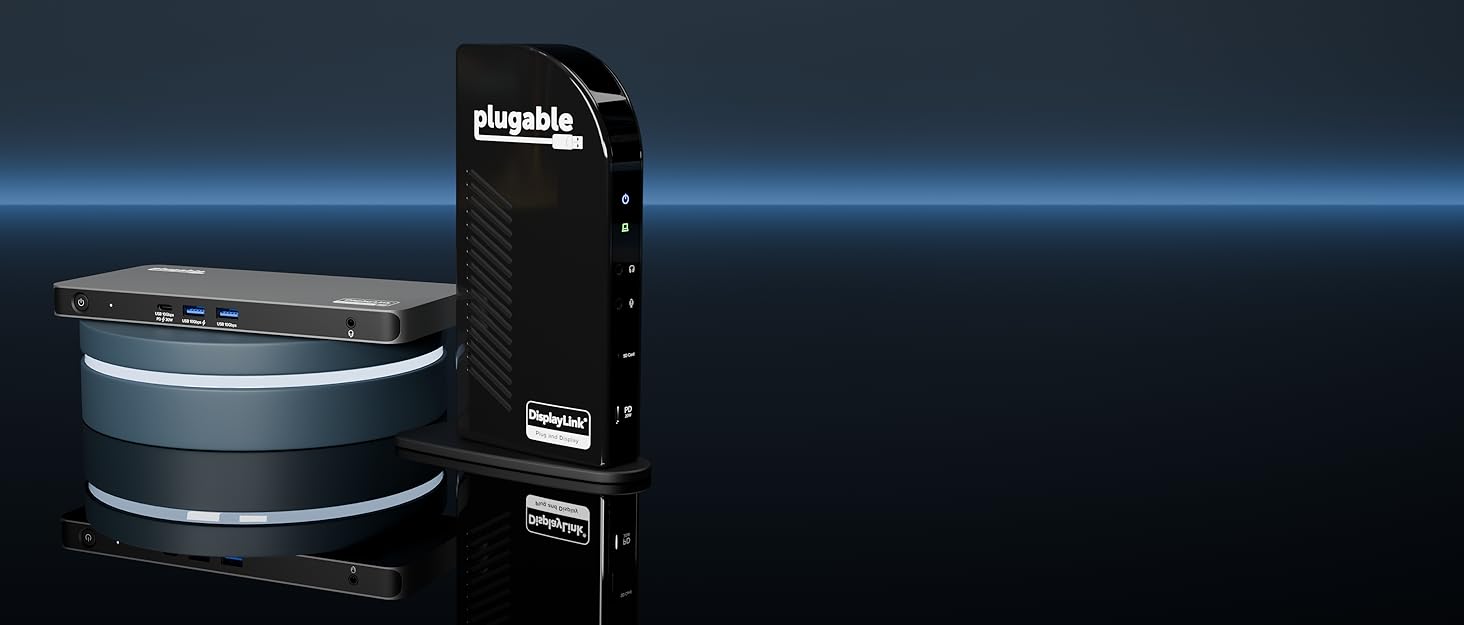
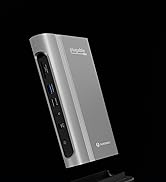
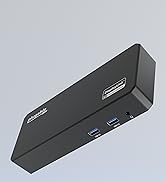
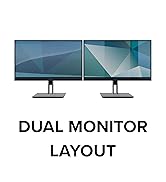
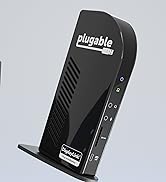
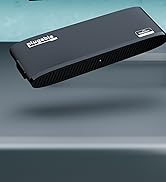
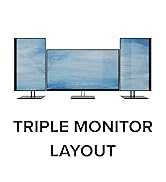
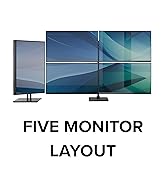
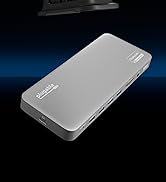
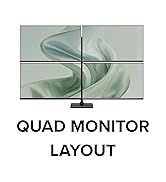
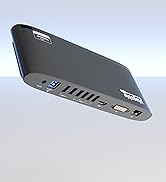
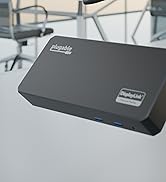
The Plugable UD-3900 is a versatile universal docking station designed for professionals seeking streamlined multi-display setups. It supports dual HDMI monitors up to 1920x1200@60Hz, offers a hybrid USB 3.0/USB-C single-cable connection, and includes Gigabit Ethernet plus 6 USB ports for comprehensive device connectivity. Compatible with Windows, macOS, and ChromeOS, it’s ideal for productivity-focused environments, backed by 2 years warranty and lifetime support.




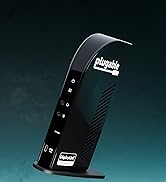

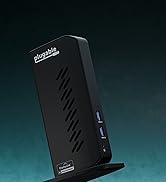

| ASIN | B00ECDM78E |
| Best Sellers Rank | #1,884 in Electronics ( See Top 100 in Electronics ) #26 in Laptop Docking Stations |
| Customer Reviews | 4.5 4.5 out of 5 stars (11,779) |
| Date First Available | August 15, 2013 |
| Is Discontinued By Manufacturer | No |
| Item Weight | 13 ounces |
| Item model number | UD-3900 |
| Manufacturer | Plugable |
| National Stock Number | 0 |
| Product Dimensions | 6.45 x 3.22 x 4.02 inches |
M**N
Accomplishes everything I need without breaking the bank
I don’t normally write reviews because like everyone else on this planet I’m busy, between my graduate degree, work, and life in general, my spare time is valuable. However, I struggled for months trying to find the right combination of things for my specific situation and I am hoping this will help other people make an informed decision that they are happy with. After talking with tech people at work and in stores, and in addition to my own internet research I finally settled on the Plugable USB 3.0 Docking Station (Model UD-3900, Dual Monitor Docking Station). I’ve included my thoughts on the Plugable USB 3.0 Docking Station as well as some helpful hints that users who are not super computer savvy might find helpful (I will add, I’m not a super techy person myself). First, my thoughts on this product: It accomplishes my “wish list” without having to spend hundreds of dollars on a Docking Station. I have two computers – an older, personal computer (from around 2013/2014 time frame) that does not have a 4K screen and a brand new 2019 screaming machine that is provided by my job that does have a 4K screen. My home monitors are two 27” LG Class Full HD IPS LED with dual HDMI connections that I purchased around 2 years ago. This means that I am dealing with resolution differences across all of my equipment (I’m working with 3 generations of technology). Each computer has the following connections – 1 HDMI port (both computers), 3 USB ports (older computer - 1 USB 3.0 and 2 USB 2.0), 2 USB ports (newer computer – all USB 3.0) and 1 USB-C Port (newer computer). My wish list included the following: 1. Connect and EXTEND my desktop display to my two 27” monitors. 2. Keep a resolution that does not blow everything up to a size that is unusable (an issue when dealing with 4K and not 4K capable equipment) 3. Plug one cord into my computer (rather than multiple) The Plugable USB 3.0 Docking Station does exactly this with minimal effort and without spending hundreds of dollars. I was really pleased when I plugged everything in and changed the display setting to extend and everything just worked. (As a note, I did tinker with the resolution settings on both computers to get my mouse to move screen to screen anywhere along the side borders – I did not observe a noticeable change in the image on my computer or on the monitors after doing this.) I was fortunate that all I had to do was plug and play and did not even have to restart either computer after plugging the unit in for the first time. The little informational booklet that comes with the product is actually pretty helpful if you know a little bit about what you are doing and want to accomplish, though it is brief and mostly contains pictures. There is also a web page and email address listed in the booklet if you need troubleshooting help. In short, if you have lots of cords that need to connect to your computer (for whatever reason), you don’t care if it charges your laptop, and you need two additional displays I would definitely recommend this docking station. Here are some things I learned along the way in regards to my specific situation. This is not meant to be a how to for all systems or set ups, just information that hopefully helps others. There is a lot of functionality in this little device way beyond what I have covered below - again, I'm not a really tech oriented person, a lot of what follows is laymen's terms. 1. Calling this a “docking station” is a bit of a misnomer – a true docking station, when plugged into your laptop, will charge it (this product does not charge the device it is plugged into). True docking stations also have a multitude of other capabilities, including supporting more than 2 screens and device charging and will run you in the $200 - $400 range. I would dub this a “docking station Jr.”, some but not all of the capabilities of a true docking station. That being said, it does have the option to plug in an Ethernet cable to it, thus eliminating an additional cord attached to your computer (super convenient!). I’m all about fewer cords if possible and if you have to be hard wired into your internet this is definitely a plus. 2. The order of the monitors (1, 2, 3) is as follows on the back of the Plugable USB 3.0 device (keep this in mind if you are picky about how your mouse will travel from one monitor to the next) a. Monitor 1 will always be the device you are duplicating or extending by default b. Monitor 2 will be the DVI port c. Monitor 3 will be the HDMI port 3. Cables…there are so many choices and some are directional and some are not and some need adapters and some don’t and, and, and… jeepers cats batman why can’t this be more simple!!! Here’s what you need to know about your computer and monitors to make THIS PRODUCT work. a. Do you have a USB 3.0 Port on your computer? It will say SS (super speed) next to the port. Most new computers have at least one USB 3.0 port, some older computers, like mine have 1 USB 3.0 and 2 USB 2.0. I recommend using the USB 3.0 rather than the 2.0. The basic difference is in the speed of data transfer, but either should work according to the box. (I did not try using the USB 2.0 since I have a USB 3.0 available on both computers.) b. Does/do your monitor(s) have any of the following ports on the back – HDMI, DVI, D-SUB (also sometimes called VGA)? I don’t recommend using the D-SUB (VGA) port, it doesn’t support very good resolution and you may end up with a really grainy image on your screen, but in a pinch it functions exactly as it is designed to with an adapter to connect it to the docking station (the unit comes with a VGA to DVI adapter if you didn’t notice in the product description). You’ll need a DVI to DVI cable if you are going to use the adapter. c. IF YOU HAVE HDMI PORTS ON BOTH YOUR MONITORS - here are the cables you should buy: i. 1 HDMI to HDMI, spend a couple extra dollars and get a decent cable, my experience with cheap cables is they are well, cheap. The connection can be flaky and they just give up the ghost randomly leading to the purchase of, you guessed it, another cable. ii. 1 HDMI to DVI, again spend a couple extra dollars and get a good cable. d. You need to have at least one monitor with an available HDMI port for this docking station to work for TWO MONITORS. (Why, because of the type of connections available on the docking station and the way display data is designed to stream through the available connections on your devices – there’s a way more technological answer, but simply put 1 connection out on the docking station gets you 1 connection in for each monitor.) e. What direction should the cables be connected??? This relates specifically to the HDMI to DVI cable. The DVI side of the cable is the signal out; plug it into the docking station. The HDMI side of the cable is signal in; plug it into the monitor. You are moving the image from your computer/docking station (out) to the monitor (in). 4. Duplicating a desktop vs extending a desktop: a. Duplicate means just that, whatever is on my desktop will be on my monitor(s), if I move my mouse on my desk top it moves on my monitor(s). Think meeting in a conference room where someone puts their computer screen up on the conference room monitor for everyone to see – duplicated. b. Extend means take my desktop and stretch it out across all three monitors. (Tricky, now you see where resolution problems can come into play.) For my set up my laptop is on the far right, monitor 2 is in the middle and monitor 3 is on the far left. This means that if my mouse starts on my laptop (far right) and I move to the left border my mouse will “exit” my laptop screen and “enter” my monitor 2 screen on the far right. The same will happen when I move from monitor 2 to monitor 3, and the reverse will happen when I move back towards my laptop screen. c. There a literally hundreds of YouTube videos on how to duplicate or extend your screen, simply look up “extend my computer screen” on YouTube to learn more. 5. Resolution – tricky stuff if your equipment is all different like mine a. Ever notice how when you go to arrange your screens in the order you want and some are pictured big and some are pictured small? This is because of the resolution that is set for each screen. This also means that you have to remember how you set up the order of your screens - where the borders touch in picture in the settings is the ONLY PLACE THE CURSOR CAN MOVE FROM SCREEN TO SCREEN. b. Normally the “recommended” resolution is sufficient. If you have a variety of equipment you may need to tinker with these settings. I don’t have a good step by step option because everyone’s equipment is different, all I can say is experiment; you can always change it back later. YouTube is another good resource for where settings are located and how to change them. c. If you want all of your screens to be the “same size” in the settings so your mouse can move from one screen to another at any point along the border you’ll want to set the resolution for each screen in the settings to the same thing. This might mess with how things look on your monitors and on your computer, again, tinker with it, you can always change it later if you don’t like it. Again, this is not meant as an official “how to guide”; I wanted to share some of the things I learned and clarify some terminology for those who are not super tech savvy. Hopefully this helps someone who is trying to decide if this product is the best option for their setup. Happy Computing!
M**N
“Love it, but upgrading for more connections”
I’ve been using the Plugable Universal Laptop Docking Station (UD-3900) for a couple of weeks now, and it’s honestly a great device. Setup was quick and easy after installing the driver, and everything worked right out of the box. It’s nice having my monitors, keyboard, mic and headphone all connected through one hub — makes my workspace way cleaner. The only reason I’m giving it 5 stars instead of 4 is because I need more HDMI ports. At first, I thought one would be plenty, but my setup grew faster than expected. Dock quality is amazing but it was my mistake, not the dock.. I’ll probably return this one and get another Plugable model with more ports since I’ve been impressed with the brand overall.
R**M
Great item for using your laptop like a desktop
Great item. Performs exactly as described. I hooked everything up from my desktop; monitors, external hard-drive, camera, speakers, internet gateway, and I still have 4 USB connections available! Had to download a driver, but it was plug and play after that. I don't normally give much a 5 star review, especially after just a short time using it, but this one delivered with zero problems. My desktop has Windows 10 and won't support Windows 11 so it was either use my laptop or replace my desktop. This docking station allowed me to use my laptop saving me hundreds of $. Definitely recommend it.
C**E
Microsoft Surface Pro 4 connectivity issues to multiple monitors (Samsung and Dell)
Purchased this after watching the Plugable You Tube video. I was at my wits end in connecting multiple monitors to MS Surface Pro 4. I originally had the SP connected successfully, but after about a month, and disconnecting the SP, I could no longer get the Samsung to work properly. Was hoping that this would solve the problem....it did and it didn't. For reference, I have a MS Surface Pro 4 and am connected to older model monitors (Samsung S24B300EL and Dell E201HC). I already had the Surface Dock, and was able to successfully connect both monitors to the MS dock at the beginning, by using a VGA adapter for the dell and connecting to the docks MD port. I originally was also able to connect the Samsung monitor using a Belkin HDMI to MD in the MS dock as well. I did not need an adapter at that point for the HDMI cable connected to the MS dock. That stopped working, and only the Dell monitor would work. I was able to get the Samsung monitor working again, by using an HDMI adapter and connecting directly to the Surface Pro. This was annoying because it was yet another cable coming off of the side of the SP, with a large dangling adapter. After disconnecting the SP, that connection also failed and again, I could only get the Dell to connect. The Samsung kept flickering back and forth from digital to analog, and when I plugged the adapter end directly into the SP, it caused the Dell to continually go in and out. On top of that are the typical scaling issues that many experience. My biggest complaint however...is actually the diminished screen resolution! I work extensively in Excel, with multiple spreadsheets up at a time, and could not really see the basic grid lines in my worksheets, unless I was looking at the SP. They were the worst on the Samsung, and only marginally better on the Dell. At my wits end and after reading a zillion blog articles, watching a bunch of You Tube video's, and surfing Amazon reviews, I've come to the conclusion that there are myriad of solutions to this common problem. However, there is not really a clear solution. Everyone seems to have varying solutions, depending on their setup. After watching Plugable's You Tube video, I decided to give it a try, hoping that it would solve my EXCEL problem and my connectivity issue. The UD-3900 came packaged very nicely and securely. Setup was relatively easy, and MS Pro automatically downloaded and installed the necessary drivers. It is pretty much as plug and play as the video says....but it did not solve my Samsung issue being connected via HDMI. At this point I tried every possible configuration you could think of, using HDMI, VGA and or DVI connections. I never could get the problem resolved using any connection configuration that utilized any type of HDMI setup, so excluded that as a connection option. Then went to work connecting via DVI and or VGA, after ordering a myriad of "passive" and "active" adapters. Each time I tried a new configuration, I would reboot just to make sure. It was still a struggle and in the end, the Plugable UD-3900 ended up not being necessary. I finally found success using a Fosmon mini DP to DVI adapter (purchased this brand because an Amazon review I read said they are active adapters, and I was desperate at this point) with a traditional DVI cable, and a Monoprice mini DP to VGA adapter with a traditional VGA cable (both of which I found from our IT department at work). I was able to plug them both into the back of the MS dock, with success. I do however, worry how long this will last, and what will happen when I reconnect. I was hoping to make this configuration work solely with the UD-3900, as it slightly improved the appearance of Excel, but alas, the UD-3900 docking station only has one connection point for a VGA or DVI. You cannot use both or doubles, as there is only one connection. (I could if I wanted to connect one of the monitors to the side of the SP4, but I was wanting to avoid this. The only alternative that I could see, it to use the VGA/DVI port, AND the HDMI port, to connect two monitors. Since I couldn't make the HDMI connection work with the Samsung, this was a deal breaker for me. I decided to return the Plugable, since I am already into the MS dock almost $200, and it cannot be returned. And because I can only connect the second monitor via HDMI connection. The slightly increased resolution did not outweigh the those issues. I think the MS dock is overrated and an overall disappointment. The direction at which the cables connect to the dock, makes for difficult and messy cable management. I also think the length of the power cord to the dock is ridiculously short. Because of this, I would consider purchasing the UD-3900, if I had monitors that could successfully be connected via the options on the dock itself. I would say that it not having a double DVI/VGA port is its only downfall for me personally. (FYI it does come with an adapter so that you can use that port either way.) I'm guessing this is eliminated because many monitors now have HDMI connection, and they are probably less bulky than the alternatives. I like that it stands up (could use a wider base...I can see it tipping over. Or an option to anchor to the desk.) and that most of the connections flow out the back, and not all over your desk. I reduced by one star for two reasons; because it ultimately did not solve my connection problems and the increased resolution was only minimal, and because I had to pay return shipping. If it had free return shipping, I might have kept it at five stars, despite the other issues. Overall...if you have recently purchased a MS Surface Pro, I would purchase this dock over MS version. Especially considering its increased functionality, decreased cost, cable management, and footprint.
D**Z
Excelente producto, solo es conectar y usar. Ya tenia anteriormente el modelo con VGA pero solo tenia un puerto HDMI por lo cual cambie a este con dos puertos HDMI. El resto continúa igual a excepción del cable de corriente y el cable a la computadora/laptop que ha mejorado bastante en su calidad y han agregado un adaptador a C pero este no carga la laptop así que un punto negativo para laptops qué solo cuentan con uno para carga.
S**A
Works wells. However, after spending so much on it again had to purchase AU adopter to use it.
M**A
LANの有線接続、1920×1200のモニタ2台接続など、やりたいことはすべてできました。 耐久性はこれからですが、今のところ特に不具合などなく満足です。 唯一、USB type-C接続のものと比べると価格が高めです。もう少し安くなるとありがたいです。
A**R
Works well with my ASUS K401U Notebook through a single cable to one of its USB 3.0 port.
A**S
Good. Pretty much plug and play!
Trustpilot
2 weeks ago
2 weeks ago