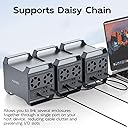
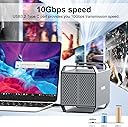
🚀 Elevate your storage game with speed, scale, and smart cooling — don’t get left behind!
The MAIWO 4 Bay Hard Drive Enclosure is a high-performance DAS solution designed for professionals needing fast, reliable, and expandable storage. Featuring USB-C connectivity with 10 Gbps transfer speeds, dual cooling fans for optimal heat management, and support for up to 96TB across four 3.5” SATA HDDs, it ensures compatibility with multiple operating systems and devices. Its daisy chain capability and robust 84W power supply make it a versatile and powerful choice for managing large data workloads.


| ASIN | B0D28Q187R |
| Best Sellers Rank | #676 in Enclosures |
| Compatible Devices | Computers, Laptops, and Smart TVs |
| Customer Reviews | 3.6 3.6 out of 5 stars (75) |
| Data Transfer Rate | 10 Gigabits Per Second |
| Date First Available | May 31, 2024 |
| Hard Disk Form Factor | 3.5 Inches |
| Item Weight | 2.42 pounds |
| Item model number | K35284A |
| Manufacturer | MAIWO |
| Material | Acrylonitrile Butadiene Styrene (ABS), Aluminum |
| Max Number of Supported Devices | 4 |
| Memory Storage Capacity | 88 TB |
| Product Dimensions | 7.27 x 5.03 x 6.4 inches |
R**I
An Excellent Enclosure with all the latest connectivity ports.
This enclosure replaces an Akitio Thunder3 Quad enclosure that was not working with my mac. This Maiwo enclosure works with Windows and macOS. No additional drivers needed.
A**R
Great until it wasn't. 2 months and dead.
Buyer beware! Read the reviews on this, they are accurate. Purchased this April 4th. Died tonight, two months later. Seems to be a power issue. Nothing wrong with the power block the best I can see. The indicator light is illuminating anyway. But for whatever reason when I flip the power to On, the power LED basically turns of for a fraction of a second then turns off and nothing happens beyond that. No start up, no fan movement, no additional lights turn off. In short this thing is a total brick. I wanted to love this thing. Functionally it was great for the last two months. Had no issues installing my HHDs. Speeds where alright. Seemed like a win at the price until tonight. I checked the manufacturers website and the instructions given to combat an outage were futile. I'll attempt to reconcile this with there customer service department but from what I've read it sounds like its an uphill battle to find a resolution that doesn't involve buying another unit. I hate wasting my hard earned money and that sadly is how I feel tonight. Such a shame.
V**R
A bargain for a reason
UPDATE (14 months later): Unfortunately, after about 14 months of normal use, this enclosure failed completely. It will no longer power on or stay powered, even with no drives installed. I verified the original power adapter and tested multiple known-good 12V adapters (including a higher-rated 12V/10A unit, confirmed with a multimeter). The issue is not the power supply — the enclosure itself has failed. I contacted the seller (MAIWOASIA). They suggested purchasing a replacement power adapter and offered reimbursement, but after I explained that I had already tested multiple adapters and that the enclosure fails with no drives installed, they stopped responding. Amazon ultimately stepped in and processed a one-time exception refund, which I appreciate. However, given the complete failure just outside the warranty period and the lack of follow-up from the seller, I can no longer recommend this enclosure for long-term use — especially for important data. ORIGINAL POST: (UPDATE: When using a proper cable (Thunderbolt 4) the unit CAN be used in the back ports of your Mac mini M4 AND the HDMI works with no issues.)) This device is an absolute bargain. It features four hard drive bays and is an ideal enclosure for backup drives. The exterior is made of aluminum, while the interior is plastic. However, it’s not suitable for everyone. I’m using it with a 2024 Mac mini Pro. When connected to the Thunderbolt 5 ports on the back, it doesn’t function. It works perfectly with the USB ports on the front of the machine. I couldn’t get the HDMI port to work, but since I don’t need it, I’m not using it. CAUTION: all the pieces are slightly rough around the edges, and some of the edges are razor-sharp. You could easily get cut.
J**R
Small, sleek, and built well
Love this thing - super solidly built, and not *crazy* loud (but the small fans on the back could use some work). Easy to. setup and does exactly what I need. Running 4x6tb drives out of it, and they run totally fine. If you're looking for RAID or something fancier, this isn't going to get you there (unless you want SWD RAID) but for JBOD it's great.
T**S
WARNING! READ BELOW BEFORE INSTALLING DRIVES WITH PERSONAL DATA
This MAIWO 4 bay drive enclosure might be corrupting existing partitions or writing over existing partitions without warning! It would be wise to BACKUP all your PERSONAL DATA (like videos and photos) on any drives BEFORE you connect them to this MAIWO 4 bay drive enclosure for the first time! I installed four (10TB, 5TB and two 3TB) WD drives into this MAIWO 4 bay enclosure and all 4 drives had personal data on them. After installing them (only physically, NO partitioning) and turning each drive on I was immediately prompted in Windows 11 to format three of the four drives! Three (5TB and two 3TB) drives somehow had their original partitions and files system overwritten, removed or corrupted! Their data was wiped out, GONE! For some reason the 10TB drive was the only drive that didn't lose it's data since it's partition and files system was untouched. It was in the number 4 bay of this MAIWO 4 bay drive enclosure, and was the first drive to be turned on (before the other 3 drives). I'm using Windows 11 pro OS and was NEVER prompted or warned about any partition or file system change warning. After turning on these drives Windows prompted me to perform a disk format for three of the affected drives since their file systems were either removed, deleted or corrupted. Either it's a built-in software feature in the circuit board of this MAIWO 4 bay drive enclosure that did this, or Windows does this whenever you plug in ANY USB 4 bay drive enclosure for the first time to install drives, or something happened that's defective in the device or software, I don't know at this point. I will update my review once I have time to run some tests on this MAIWO 4 bay drive enclosure to see if it's working correctly, and hopefully not the cause of this data loss. So I'm forewarning you to be CAREFULL AND BACKUP UP ALL DRIVES before installing them in this MAIWO 4 bay enclosure! On a lighter note, this MAIWO 4 bay drive enclosure will only power-on if you have a drive installed AND the usb cable is connected to a running computer. Otherwise it will seem like the AC power to this device is not working, I think it's a safety or drive standard feature and not an issue with this device. Also the fans ONLY turn on when the MAIWO 4 bay drive enclosure reaches a certain temperature (that's in the manual) which is another feature built-in to this device. I like the well designed and solid aluminum case shell/cover, even though the rest of this device is plastic there are these brass implanted threads in the plastic parts so screws can be tighter and more secure, without being strip and loosened over time. I do like that each bay has it's own power switch for turning on/off individual drive and has USB Type-C 10GB/s transfer speeds at a reasonable price, these two features are mainly why I purchased it. Fortunately I did a backup all my drives to a WD 20TB drive before installing them into this 4 bay enclosure. It was just sheer luck I did because I NEVER expected these drives to have their data and partition wiped clean!
K**X
This is an initial review. I may update later if there are issues. TLDR; It works great, with a few minor annoyances. Excellent value. Update: I created a basic Windows Storage Space with 2 of the drives: a 2TB and a 1TB. The process was easy - if you follow the instructions. You Must back up whatever is on the drives before you create the storage space. Everything on the drives gets wiped out in the process. Then you can restore it afterwards. 1) It was easier, to set up than putting internal drives into a PC case. Granted, the font in the instructions is fairly small - not the best if you don't have good eyesight. Truth is, I found the setup to be straightforward enough that I didn't refer to the instructions. There are _lots_ of screws to deal with - remove 1 to get part of the frame out, then 27 to be screwed in to hold it all together. That is a PITA, for sure, and you _could_ use fewer and I'm sure it would be fine. 2) There is a procedure for creating a software RAID or JBOD. It involves some technical knowledge, or the ability to follow step-by-step instructions. And THAT may involve re-initializing the drives. If you have anything on the drives, you must back them up or the contents will be lost and unrecoverable. I'm not using Windows Storage Spaces, although I might at some point in the future. 3) The fan isn't THAT loud. Certainly not loud enough to deduct any stars. It is a 2-speed fan. The speeds are 0 and 1. Again, mildly annoying but not worth deducting a star. 4) The USB-C ports. You have to get them right. Use the one labelled PC to connect to the computer. The other one allows you to connect more stuff, such as a hub or card reader or another drive enclosure. 5) Make sure the drives are properly seated before you lock them down. I put in "HDD 2" and seated it before putting the HDD 1 / HDD2 cage in place. It would be difficult to move the drive and seat it properly if you put it in the cage first. (I just thought of a different way. I'll try it if I buy another of these enclosures.) 6) I tried the HDMI port. Apparently it only works if you have a USB-C connection from the PC. I don't. I can confirm that there is no HDMI output if you use a USB-A connection from the PC. Not worth deducting a star - for me - because I didn't buy it for the HDMI port. It would be a nice extra, but not something I require.
A**R
This is such a shame! I really liked this disk enclosure and it is working perfectly as a TrueNAS disk pool for just over one month, and then it died! Similar to what others have said, when turned on the power light just flashes briefly, but it won't come on. I tested the power brick and everything is good there. The unit needs more robust electronics, particularly on the power internals.
M**H
It never worked. Installed as instructed, adapter’s light turns on but the power button on the system doesn’t work. Unfortunately I sent it to a friend abroad and cannot request a return :/
T**S
Works great. Fan is a bit loud. Bit otherwise; great product at this price point. Solidly built. Nice heavy feel.
S**T
This is a quality product for the price. I picked up two units to house eight repurposed 2TB and 4TB 3.5" HDDs, and they have worked flawlessly. Many of the low ratings are due to user errors, specifically when trying to set up software RAID (Storage Spaces). The enclosure is fully compatible, but your drives need to be prepped first. TROUBLESHOOTING: Common User Issues 1. Power State: This unit is not designed to be a standalone, always-on device. It requires a proper USB-C connection to a PC to power on the drives. If the main power LED is flashing, the unit is likely not properly connected to your computer's USB-C port. If a drive doesn't spin up, try toggling its individual power switch. 2, Storage Spaces Error: This enclosure completely supports Windows Storage Spaces for pooling multiple HDDs using all resiliency types (Simple, Two-Way Mirror, Three-Way Mirror, and Parity). I successfully created a single 18TB pool spanning both of my enclosures. If you are getting an error like "The physical disk's sector size is not supported..." or cannot create your pool, it's almost certainly because of leftover partition metadata on your drives. The Fix: Preparing Drives for Storage Spaces (Data Loss Warning!) 🚨 WARNING: These steps will permanently erase ALL DATA on the drives. Only proceed if you have no important data saved on them or you've backed up your files to another drive. Launch DiskPart: After installing the drives and connecting the enclosure, open an elevated Command Prompt (Run as Administrator). Type diskpart and press Enter. Clean the Drives: Type list disk to see all available drives. Identify the drive numbers (e.g., Disk 1, Disk 2, etc.) that are inside the enclosure. For each drive in the enclosure, run the following commands, replacing # with the correct disk number: select disk # clean Repeat the select disk # and clean process for all drives you want to use in the pool. Initialize to GPT: This is the crucial step to resolve metadata conflicts. Close the Command Prompt window. Open Disk Management (search for it in the Start Menu). A new window should pop up immediately, prompting you to Initialize Disks. If it doesn't, right-click on the left-hand side of any of the "Unknown" disks from the enclosure and choose Initialize Disk. Ensure all your newly cleaned drives are selected. Choose the GPT (GUID Partition Table) partition style and click OK. Create Your Pool: You can now launch Storage Spaces (search for it in the Start Menu or Settings). Create a new pool. All of the drives in your enclosure should now be recognized and available. Proceed with creating your desired Storage Space (virtual drive) with your chosen resiliency type.
Trustpilot
2 weeks ago
4 days ago